



Configure the field's rules
What the video shows
- In Jira settings, Fields, select Create new field, choose Oktul Regex Field (Single line) and name it Phone number.
- In the field's context settings, choose Advanced and write the pattern for an Estonian phone number. The pattern is valid.
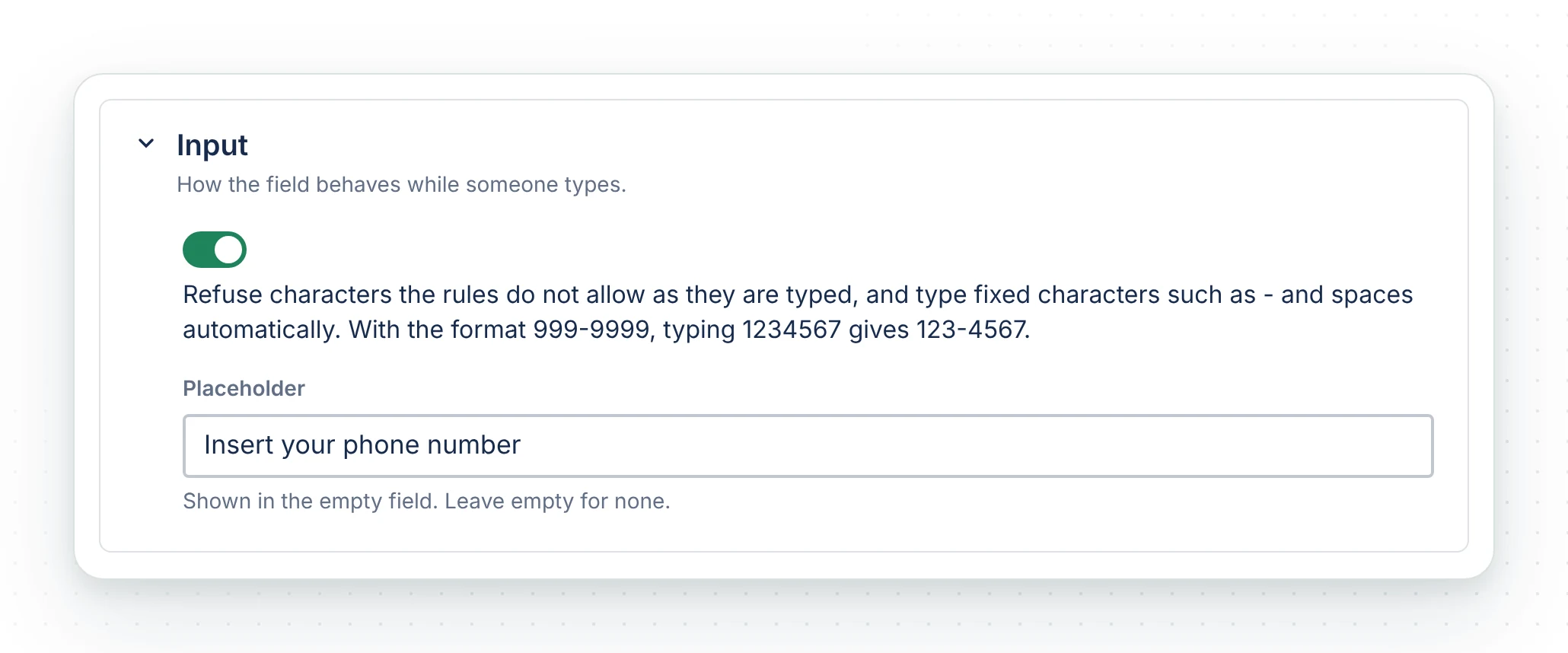
- Open Input and turn on strict input, with the placeholder Insert your phone number.
- Back in Rules, try 5699220: strict input turns it into +372 5699220, and it is accepted.
- Select Save.
Rules are set per field context, so one field can follow different rules in different spaces or work types. A field with no rules accepts any value.
Steps
- Create the field
In Settings, Work items, Fields, select Create new field. Under Field type, type Oktul and choose Oktul Regex Field (Single line) or Oktul Regex Field (Paragraph), give it a name and select Create.
- Add it to field schemes
Jira then offers to add the field to field schemes. Tick the schemes of the spaces that need it and select Add, or Skip and add it later. Put it on the screens and request types it belongs on, as any custom field.
- Open the context settings
Select the three dots beside the field, then Contexts and default values, then Edit custom field config.
- Set the rules
Under Rules, choose Simple or Advanced. Try values in the Try a value box before saving: it names each rule a value breaks, and with strict input on it shows what the box would turn the value into.
- Set the input, the prefill and the message, then Save
Each is its own section on the same screen. Open one, and the others close.
What each setting does
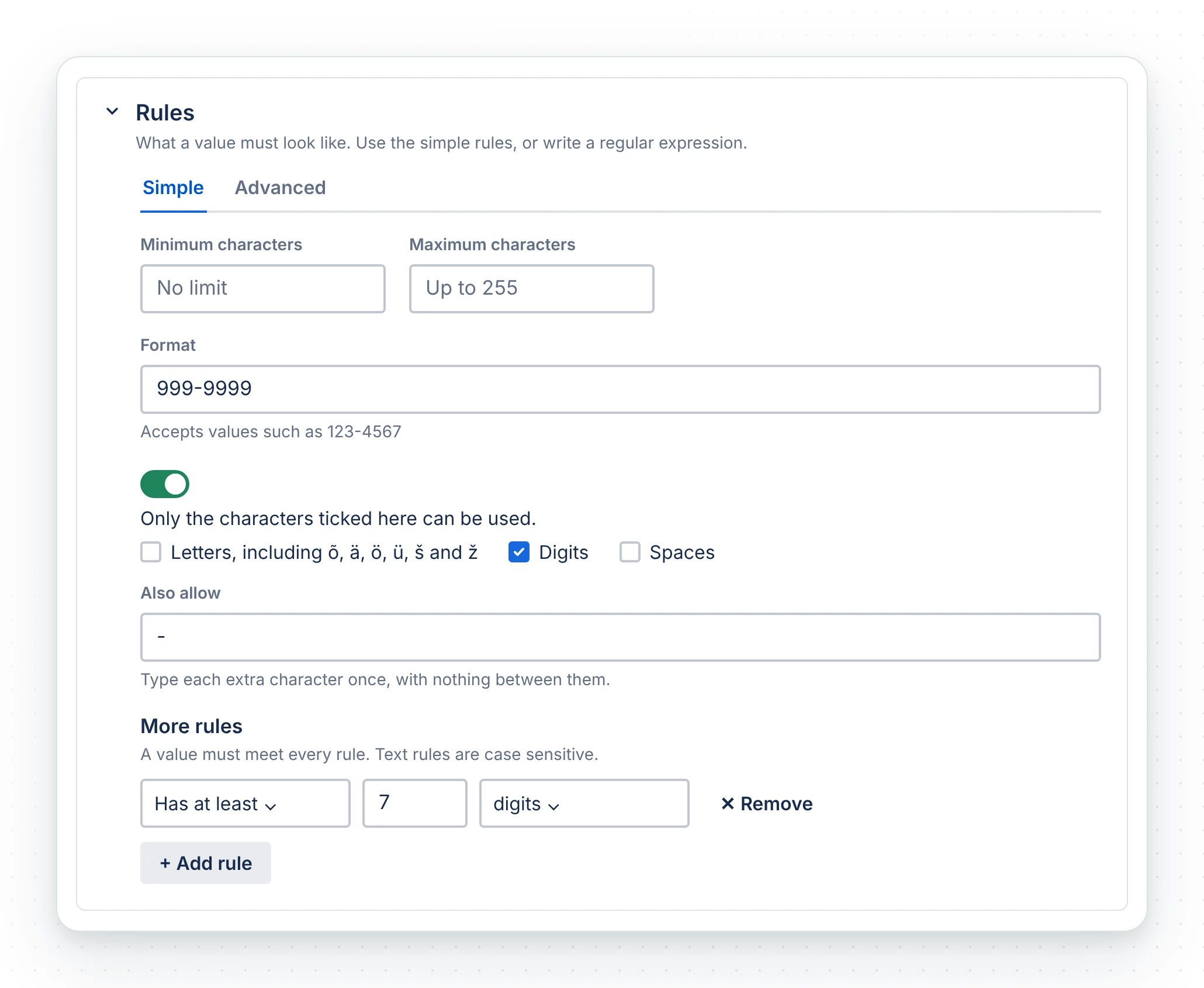
Rules: Simple
| Setting | Default | Effect |
|---|---|---|
| Minimum characters | No limit | Shorter values are refused |
| Maximum characters | 255, or 32,000 for a paragraph | Longer values are refused |
| Format | None | 9 is a digit, A a letter (õ, ä, ö, ü, š, ž included), * any character, anything else is fixed. Put \ before 9, A or * to fix it as typed. 999-9999 accepts 123-4567 |
| Limit which characters can be used | Off | When on, only the ticked groups (letters, digits, spaces) and the characters typed under Also allow. A paragraph always allows line breaks |
| More rules | None | Starts with, ends with, contains (case sensitive), and has at least N digits, letters, uppercase letters, lowercase letters or special characters |
A value must meet every rule.
Rules: Advanced
One regular expression that the whole value must match, so ^ and $ are optional. The box
says what is wrong, and where, as you type. Empty accepts any value. Simple-mode lengths do not
apply.
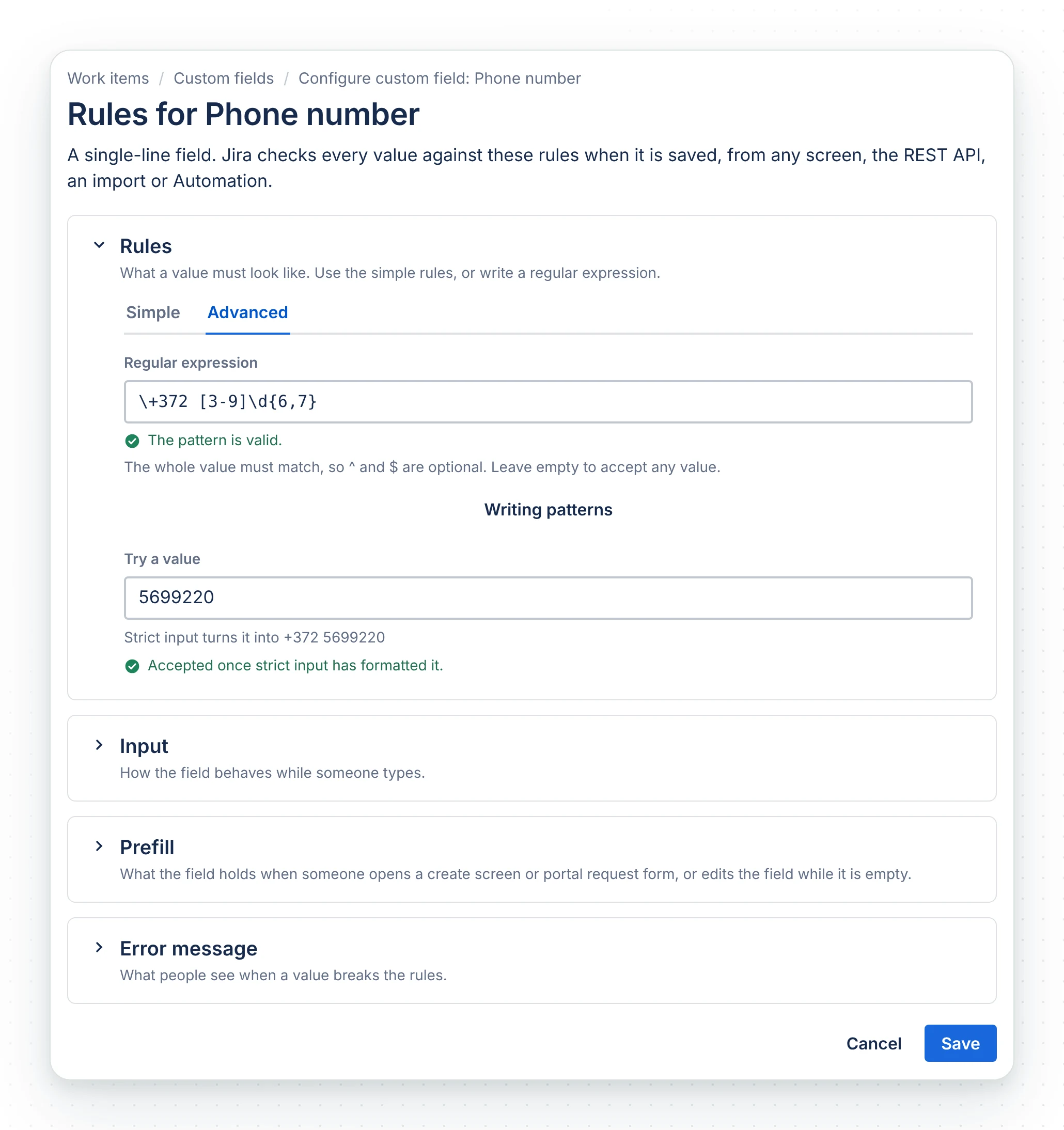
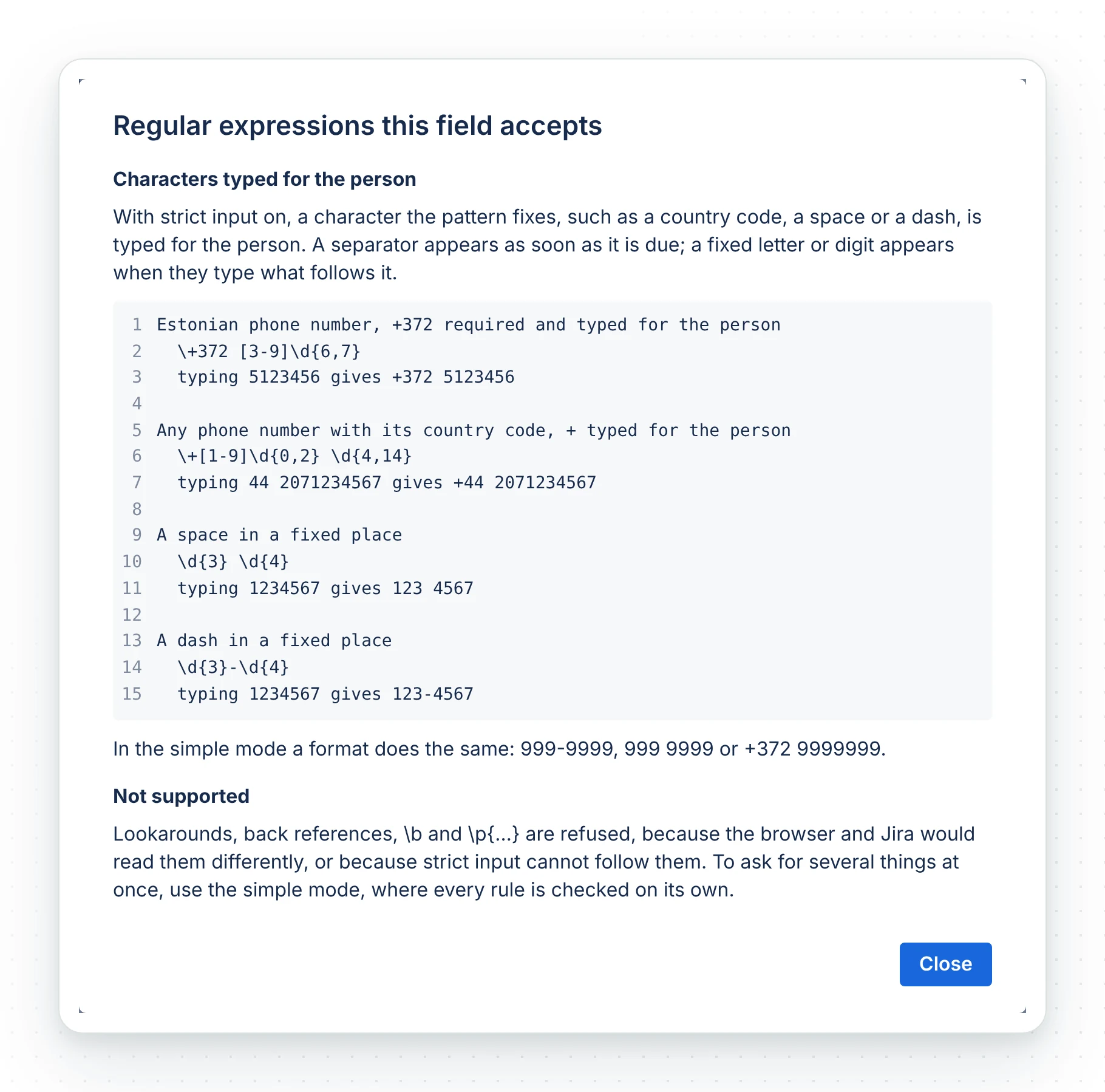
Writing patterns, under the box, shows the syntax with examples. With strict input on, fixed characters are typed for the person:
| Pattern | Typing | Gives |
|---|---|---|
\+372 [3-9]\d{6,7} (Estonian phone, +372 required) |
5123456 |
+372 5123456 |
\+[1-9]\d{0,2} \d{4,14} (any phone with its country code) |
44 2071234567 |
+44 2071234567 |
\d{3} \d{4} (a space in a fixed place) |
1234567 |
123 4567 |
\d{3}-\d{4} (a dash in a fixed place) |
1234567 |
123-4567 |
In the simple mode a format does the same: 999-9999, 999 9999 or +372 9999999.
Input (single line only)
| Setting | Default | Effect |
|---|---|---|
| Strict input | Off | Characters the rules refuse cannot be typed, and fixed characters are typed automatically. A pasted value is formatted the same way |
| Placeholder | None | Shown in the empty field |
Prefill
What the field holds when a create screen, a portal request form or a transition opens, filled from smart values for the person, the date, the space and other fields on the form. Its own page covers it: Fill fields dynamically.
Error message
Left as the default, each person sees it in their own language. Once you change it, everyone sees your wording.
Show the paragraph field under Description
Jira puts every new field in the side panel. A paragraph reads better under Description, at full width. A Jira or space administrator moves it once per work type:
- Company-managed space: next to the space name in the sidebar, select More actions (•••), then Space settings, Work items, Layout. Next to the work type, select Edit work item layout, drag the field into Description fields and select Save changes.
- Team-managed space: in Space settings, select Work types and the work type, then drag the field into Description fields.
Jira shows the field name beside the text, not above it, as for every Forge app field.
Automation and workflows
Set the field with the Edit work item action’s additional fields. The paragraph field takes plain text, one line per paragraph:
{ "fields": { "customfield_10120": { "text": "Line one\nLine two" } } }A script or another app sends the same body with PUT /rest/api/3/issue/{key}:
export default async function () { await jira.put('/rest/api/3/issue/FIN-12', { fields: { customfield_10120: { text: 'Line one\nLine two' } } });}import api, { route } from '@forge/api';
const key = 'FIN-12';await api.asUser().requestJira(route`/rest/api/3/issue/${key}`, { method: 'PUT', headers: { 'Content-Type': 'application/json' }, body: JSON.stringify({ fields: { customfield_10120: { text: 'Line one\nLine two' } } })});curl -X PUT "https://your-site.atlassian.net/rest/api/3/issue/FIN-12" \ -u "$EMAIL:$API_TOKEN" \ -H "Content-Type: application/json" \ -d '{ "fields": { "customfield_10120": { "text": "Line one\nLine two" } } }'- Clear either field with
null. - Jira checks a value Automation sets against the rules, as it does a person’s.
- Jira’s Field required validator works with both fields.
- To set the field during a transition, use the Work item transitioned trigger.
Scope and limits
- The rules apply to every save. Strict input applies only in the app’s editor: the work item view, create and transition screens and the customer portal.
- On a portal form the paragraph field is plain text, one paragraph per line. Add formatting on the work item afterwards.
- Lookarounds, back references,
\band\p{…}are not supported. Patterns that would stall Jira’s regex engine, such as a repeat inside a repeat, are refused with a reason. - Changing the rules leaves saved values as they are. They are checked at their next edit.
Common questions
- Can one field have different rules in different spaces?
- Yes. Rules are set per field context, so each context can have its own.
- What does the format 999-9999 accept?
- Seven digits with a dash after the third, such as
123-4567.9is a digit,Aa letter,*any character, and anything else is fixed. - Can I test a rule before saving?
- Yes. The Try a value box names each rule a value breaks, and with strict input on it shows what the box would turn the value into.