



Automation and JQL
The Automation action that writes a Work Item Selector field, the four JQL functions, and the smart values and search aliases that read a selection back.
How to write a selection from Automation, read it in a rule, and search it with JQL. Everything uses the same two words: selects and selectedBy.
Setting a field from a rule
Two ways:
| Detail | This application’s action | Jira’s own Edit work item |
|---|---|---|
| Configuration | A form: pick the field, pick the operation, list the keys | Advanced JSON, typed by hand |
| Operations | Replace, add to, remove from, clear | Replace only |
| Work item history shows | The application | Automation for Jira |
| Respects the field’s JQL scope | Yes, out-of-scope keys are skipped and named | No, it writes through REST |
The application’s action
No Forge field appears in Automation’s Edit work item field list (FRGE-1108 (opens in a new tab)), so the app has its own action.
Set work item selection. Set, add to, remove from or clear a Work Item Selector field on a work item.
| Input | What it takes |
|---|---|
| Work Item Selector field | Picked from a list of this application’s fields, each marked single select or multi select |
| Operation | Replace the selection, Add to the selection, Remove from the selection, or Clear the selection |
| Work items | Keys separated by commas, spaces or new lines |
It writes the work item the rule is running on. Inside a branch, it writes each work item in turn.
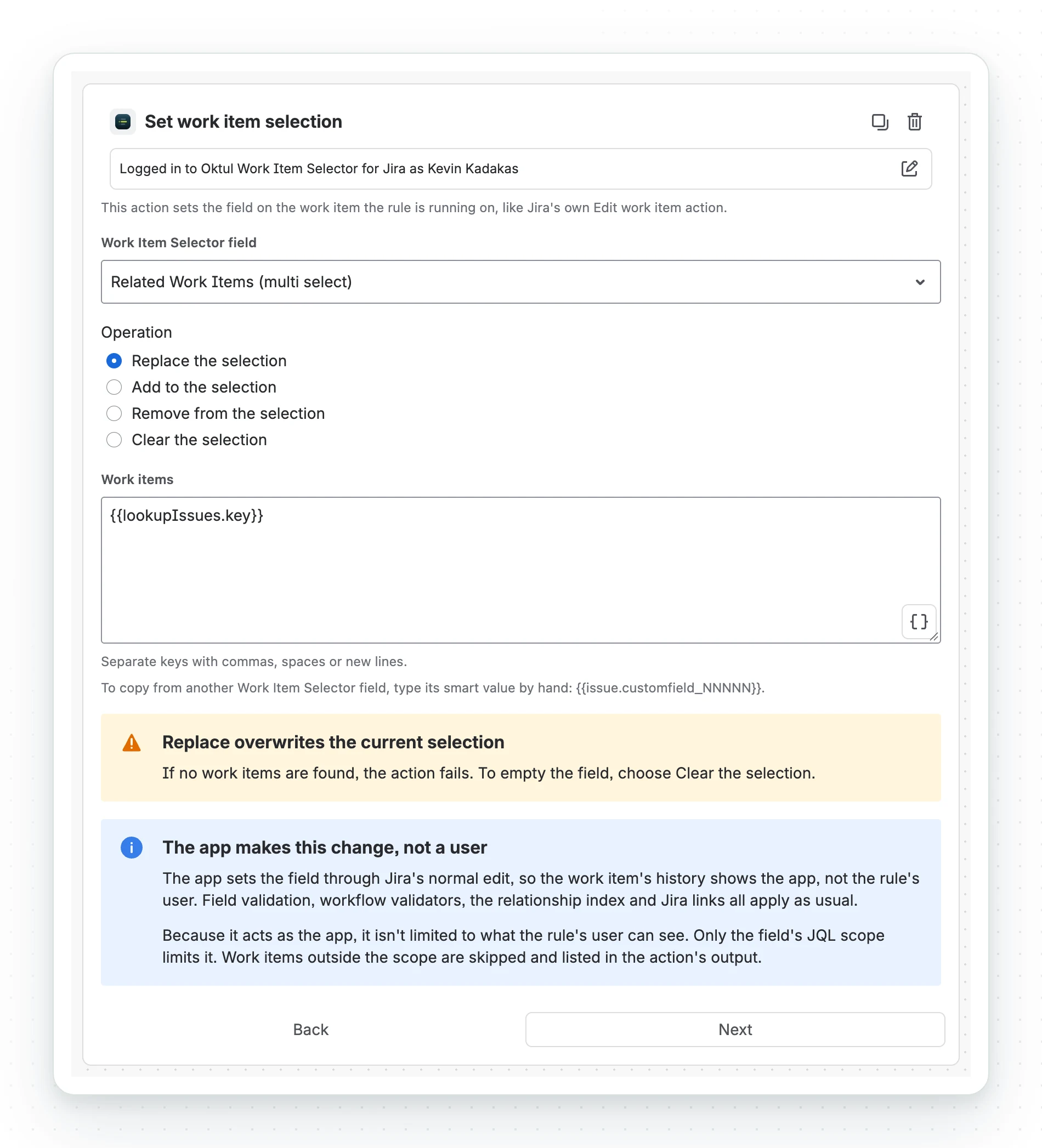
- It edits as the app, so the history shows the app, not a person. Validation, the index and Jira links update as for any edit.
- The field must be on the edit screen, or the run fails.
- It is not limited to what the rule’s user can see. The field’s JQL scope limits what a rule can select.
What to know before you build a rule
If the work items come out empty, the action fails instead of wiping the field. Use Clear to empty a field, with the work items box left empty.
- Keys outside the JQL scope are skipped and listed in
messageandskippedKeys. If every key is out of scope, the action fails. - Too many keys fails the run: more than one for single select, more than 100 for multi.
- A scope with
{{user.accountId}}blocks Replace and Add, because a rule has no viewer.{{issue.…}}placeholders work. - To copy another Work Item Selector field, type the smart value by hand:
{{issue.customfield_12345}}. Automation’s suggestion is broken for Forge fields (AUTO-2131 (opens in a new tab)). - To select by query, use Lookup work items and pass
{{lookupIssues.key}}.
Outputs
Available to later rule steps: message, changed, workItemKey, fieldId, fieldName,
selectedKeys, selectedCount, addedKeys, removedKeys, skippedKeys.
Successful outputs are not written to the audit log; message holds the result.
- After an app update, the action can take up to 20 minutes to change in the rule builder.
- The action is available in every rule on the site. Atlassian cannot limit it to spaces.
Jira’s own Edit work item action
Use the Advanced section:
{ "fields": { "customfield_10192": ["IT-1", "IT-2"] }}Use your own field id; the Knowledge base on the field’s configuration screen has it filled in. A single select field takes a list with one key.
A script or another app sends the same body with PUT /rest/api/3/issue/{key}:
export default async function () { await jira.put('/rest/api/3/issue/FIN-12', { fields: { customfield_10192: ['IT-1', 'IT-2'] } });}import api, { route } from '@forge/api';
const key = 'FIN-12';await api.asUser().requestJira(route`/rest/api/3/issue/${key}`, { method: 'PUT', headers: { 'Content-Type': 'application/json' }, body: JSON.stringify({ fields: { customfield_10192: ['IT-1', 'IT-2'] } })});curl -X PUT "https://your-site.atlassian.net/rest/api/3/issue/FIN-12" \ -u "$EMAIL:$API_TOKEN" \ -H "Content-Type: application/json" \ -d '{ "fields": { "customfield_10192": ["IT-1", "IT-2"] } }'Each of these skips the JQL scope, and the history names whoever sent the request: Automation for Jira for a rule.
Reading a selection in a rule
Reading the field itself
Use the field’s name or id. The id keeps working if the field is renamed. Below, “Blocked by” is single select and “Depends on” is multi select.
| Smart value | Gives you |
|---|---|
{{issue.Blocked by}} |
The one key a single select field holds |
{{issue.customfield_10192}} |
The same field, by id |
{{issue.Depends on}} |
Every key a multi select field holds |
{{issue.customfield_10193}} |
The same field, by id |
{{issue.Depends on.first}} |
Just the first of them |
{{issue.customfield_10193.first}} |
The same, by id |
A multi select field returns a list, so Jira’s
list smart values (opens in a new tab)
work: .first, .last, .size, .get(0), filtering and iteration.
{{issue.Depends on.summary}} gives nothing. To act on the work items, use a branch on related
work items with JQL; each one becomes {{issue}} in turn.
Reading the relationship index
The index answers what points at this work item, across every Work Item Selector field. Use it in conditions and actions. It updates in the background, a few seconds behind the field.
| Smart value | Gives you |
|---|---|
{{issue.properties.workItemSelection.selects}} |
Every work item this one selects |
{{issue.properties.workItemSelection.selectedBy}} |
Every work item that selects this one |
{{issue.properties.workItemSelection.selectsCount}} |
How many it selects |
{{issue.properties.workItemSelection.selectedByCount}} |
How many select it |
{{issue.properties.workItemSelection.byField.12345.selects}} |
Just one field’s selections |
{{issue.properties.workItemSelection.byField.12345.name}} |
That field’s display name |
Iterate a list the usual way:
{{#issue.properties.workItemSelection.selectedBy}}{{.}} {{/}}Custom JQL functions
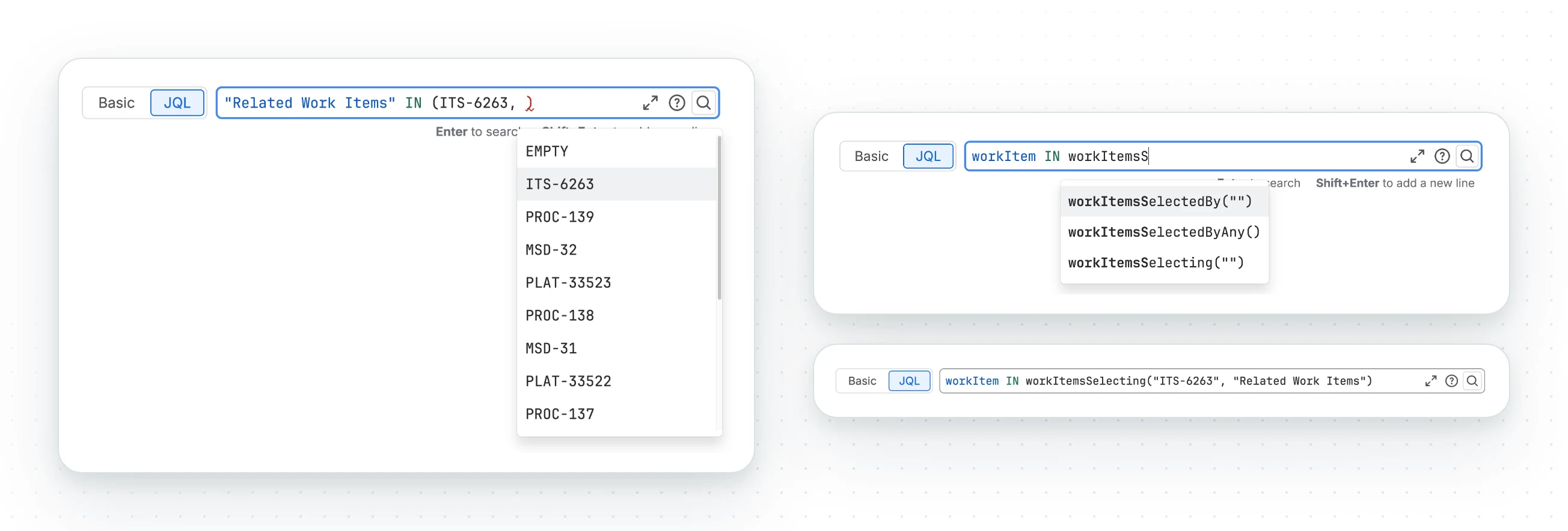
Four functions, each named for its direction.
| Function | Returns |
|---|---|
workItemsSelectedBy("IT-1") |
The work items IT-1 points at |
workItemsSelecting("IT-1") |
The work items that point at IT-1 |
workItemsWithSelection() |
Anything with at least one selection |
workItemsSelectedByAny() |
Anything referenced at least once |
Narrowing a function to one field
Without a field argument, a function searches every Work Item Selector field. Add a field to count only its selections:
| Form | Example | When to use it |
|---|---|---|
| Display name | "Blocked by" |
Readable, and what you will write by hand |
| Field id | "cf[12345]" |
Survives a rename, and unambiguous when two fields share a name |
Quote it either way. The name ignores case but must match otherwise. If two fields share a name,
the query fails and lists each cf[...].
workItem in workItemsSelectedBy("IT-1")workItem in workItemsSelectedBy("IT-1", "Blocked by")workItem in workItemsSelecting("IT-1", "cf[12345]")workItem in workItemsWithSelection("Blocked by")workItem not in workItemsSelectedByAny()The Knowledge base on the field’s configuration screen has these with your field filled in.
Querying without a function
Each index path has a JQL alias with a wis prefix:
| Alias | Meaning |
|---|---|
wisSelects |
Keys this work item selects |
wisSelectedBy |
Keys that select this work item |
wisSelectsCount, wisSelectedByCount |
How many, in each direction |
wisSelectsField, wisSelectedByField |
Field ids involved |
wisSelectsEdge, wisSelectedByEdge |
"<fieldId>:<key>" pairs |
wisSelects = "IT-1"wisSelectedByCount > 0How the index stays correct
The index updates in the background, one write at a time per work item. Installing or upgrading indexes existing values. It reacts to:
- Work item created or updated, when one of the app’s fields changed
- Work item deleted, clearing references in both directions
- Work item link deleted, removing the selection it came from. A new link someone adds by hand never appears in the field.
The field is the source of truth. Writing workItemSelection by hand does not change the field
or the other work item’s reverse entry: Forge has no event for it
(FRGE-55 (opens in a new tab)). Jira still indexes it, so it skews
the wis* aliases, the smart values and the cycle check until the app rewrites it.
To change a selection, write the field: the Automation action above, or
PUT /rest/api/3/issue/{key}.
Common questions
- How do I set a Work Item Selector field from Jira Automation?
- With the app's Set work item selection action: pick the field, choose Replace, Add, Remove or Clear, and list the work item keys.
- Why is the field missing from Automation's Edit work item action?
- No Forge field is in that list (FRGE-1108 (opens in a new tab)), so the app ships its own action.
- Does the Automation action respect the field's JQL scope?
- Yes. Keys outside the scope are skipped, and the action names them.
- Who does the history show as making the change?
- The app, because the action edits as the app rather than as a person.
Related
- Workflow validation, which enforces rules on a selection at a transition
- JQL scope, which bounds what a rule or a person can select
- Permission mode
- Privacy and data handling
A problem or a question? Write to support@oktul.com or open a request in the Help Center (opens in a new tab).